Get Started with Cosmos Reason1 on Brev: Inference and Post-Training
Author: Saurav Nanda Organization: NVIDIA
This guide walks you through setting up NVIDIA Cosmos Reason 1 on a Brev H100 GPU instance for both inference and post-training workflows. Brev provides on-demand cloud GPUs with pre-configured environments, making it easy to get started with Cosmos models.
Overview
NVIDIA Brev is a cloud GPU platform that provides instant access to high-performance GPUs like the H100. This guide will help you do the following:
- Set up a Brev instance with an H100 GPU.
- Configure the environment for Cosmos Reason 1.
- Run inference on the Reason 1 model.
- Perform post-training (SFT) on custom datasets.
Prerequisites
- Sign up for a Brev account.
- Install the Brev CLI as described in the Brev CLI reference.
- Refer to the Brev Quickstart to get a feel for the platform.
- A Hugging Face account with access to Cosmos-Reason1-7B.
The cheat code: Launchables
Launchables are an easy way to bundle a hardware and software environment into an easily shareable link. Once you've dialed in your Cosmos setup, a Launchable is the most convenient way to save time and share your configuration with others.
Note: Cosmos and Brev are evolving. You may encounter minor UI and other differences in the steps below as Brev changes over time.
Step 1: Create a Brev Launchable
-
Log in to your Brev account.
-
Find the Launchable section of the Brev website.

-
Click the Create Launchable button.

-
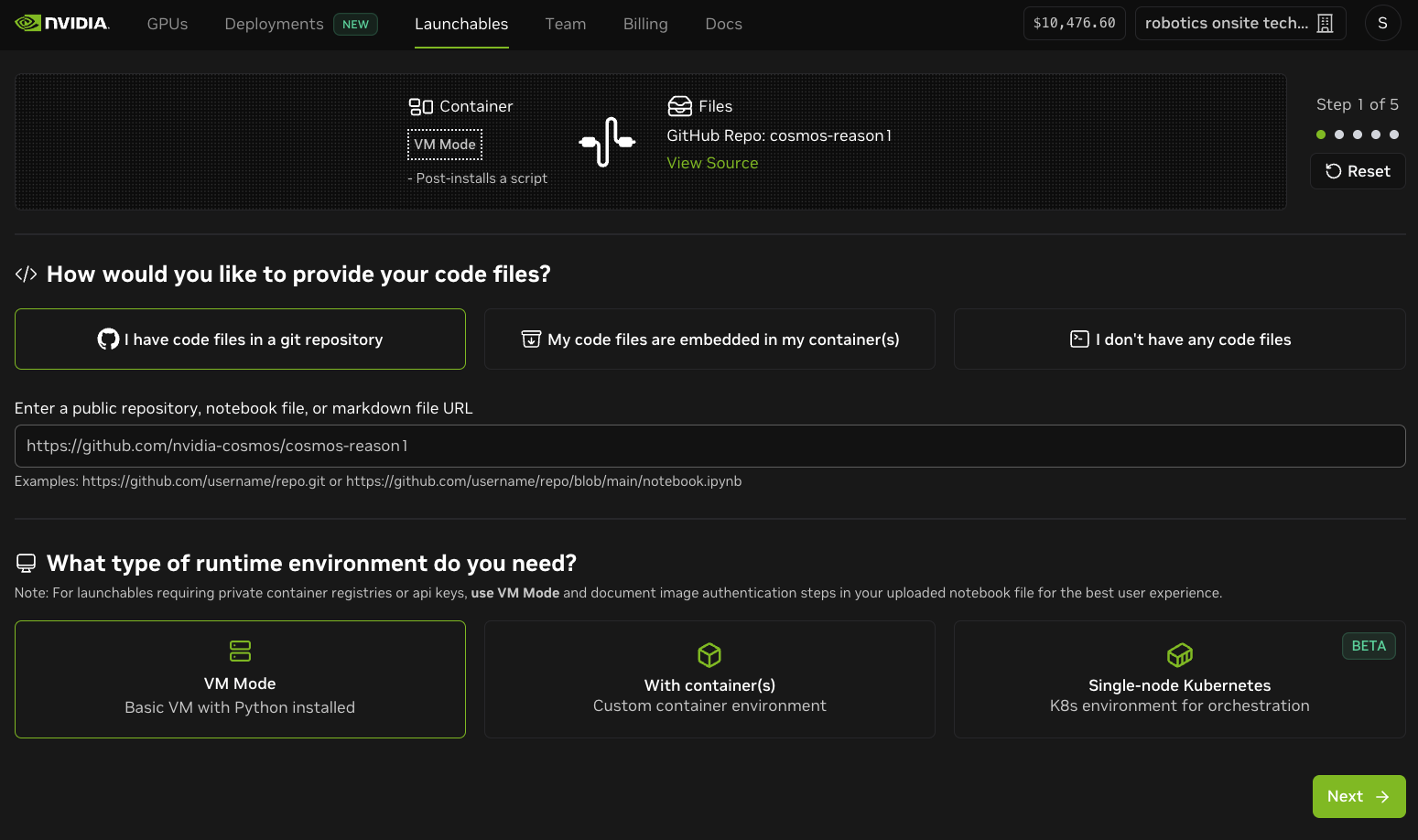
Enter the Cosmos Reason 1 GitHub URL
-
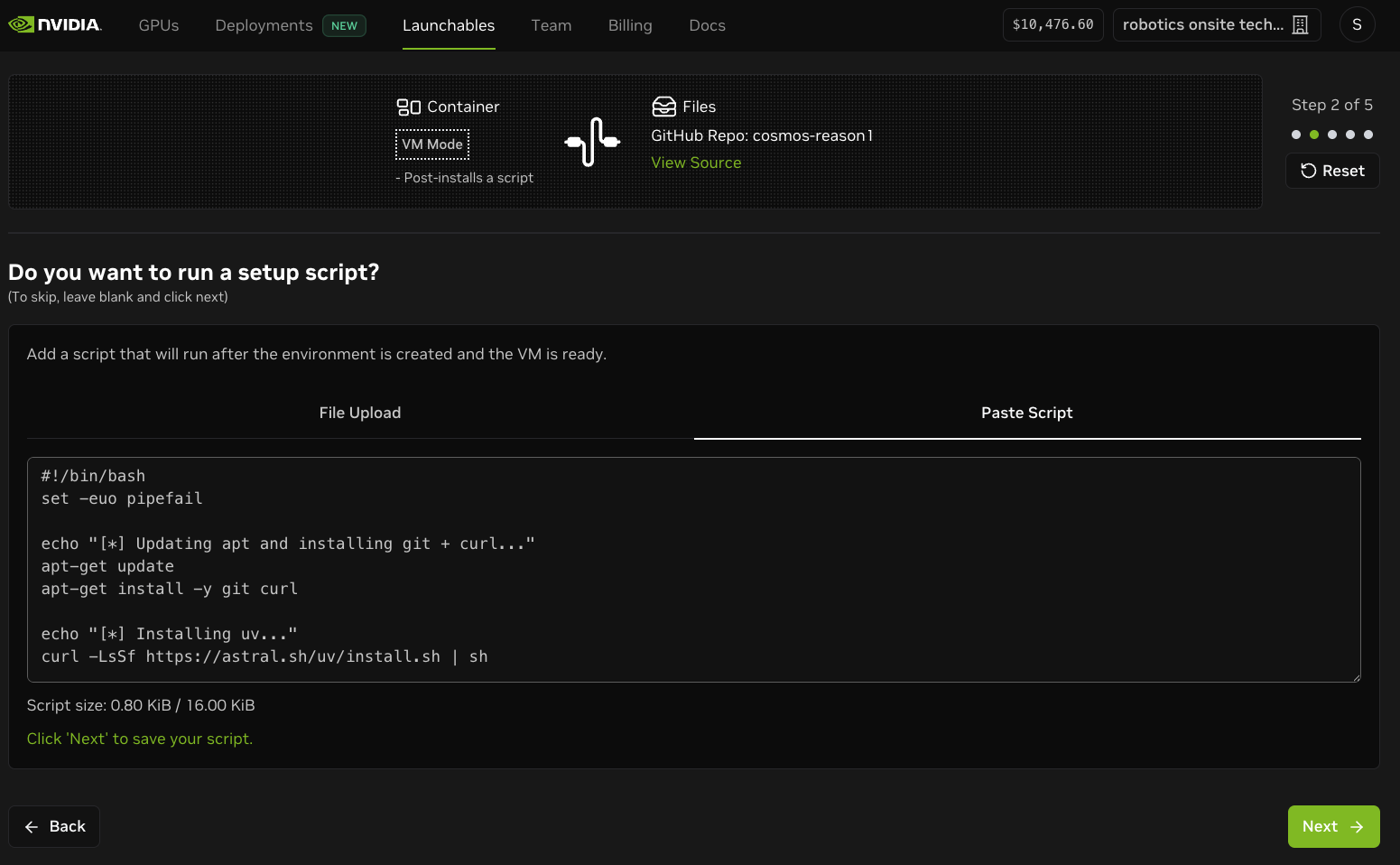
Add a setup script for Cosmos Reason 1. Refer to the sample setup script for an example.
-
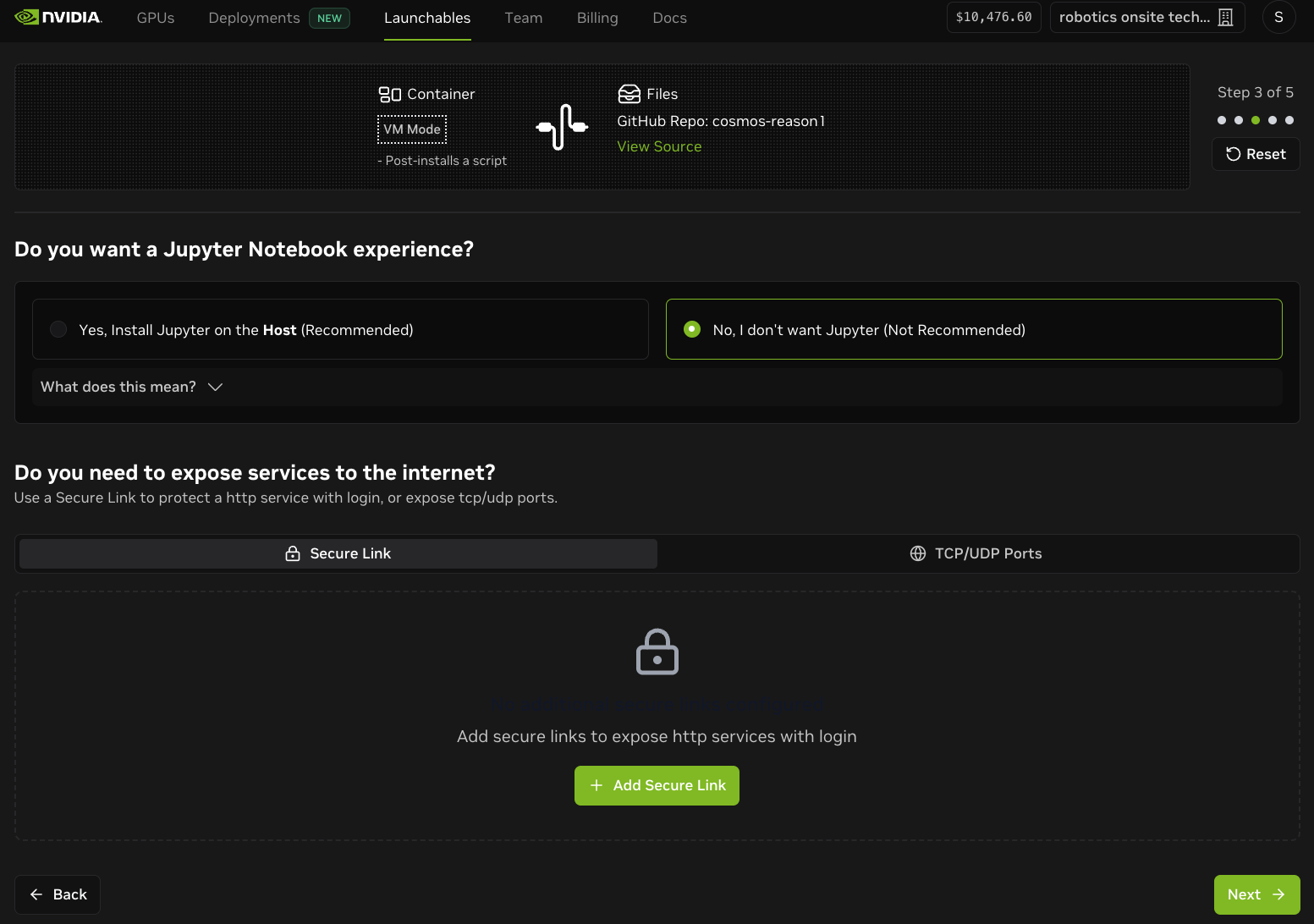
If you don't need Jupyter, remove it. You can open other ports on Brev if you plan to set up a custom server.
-
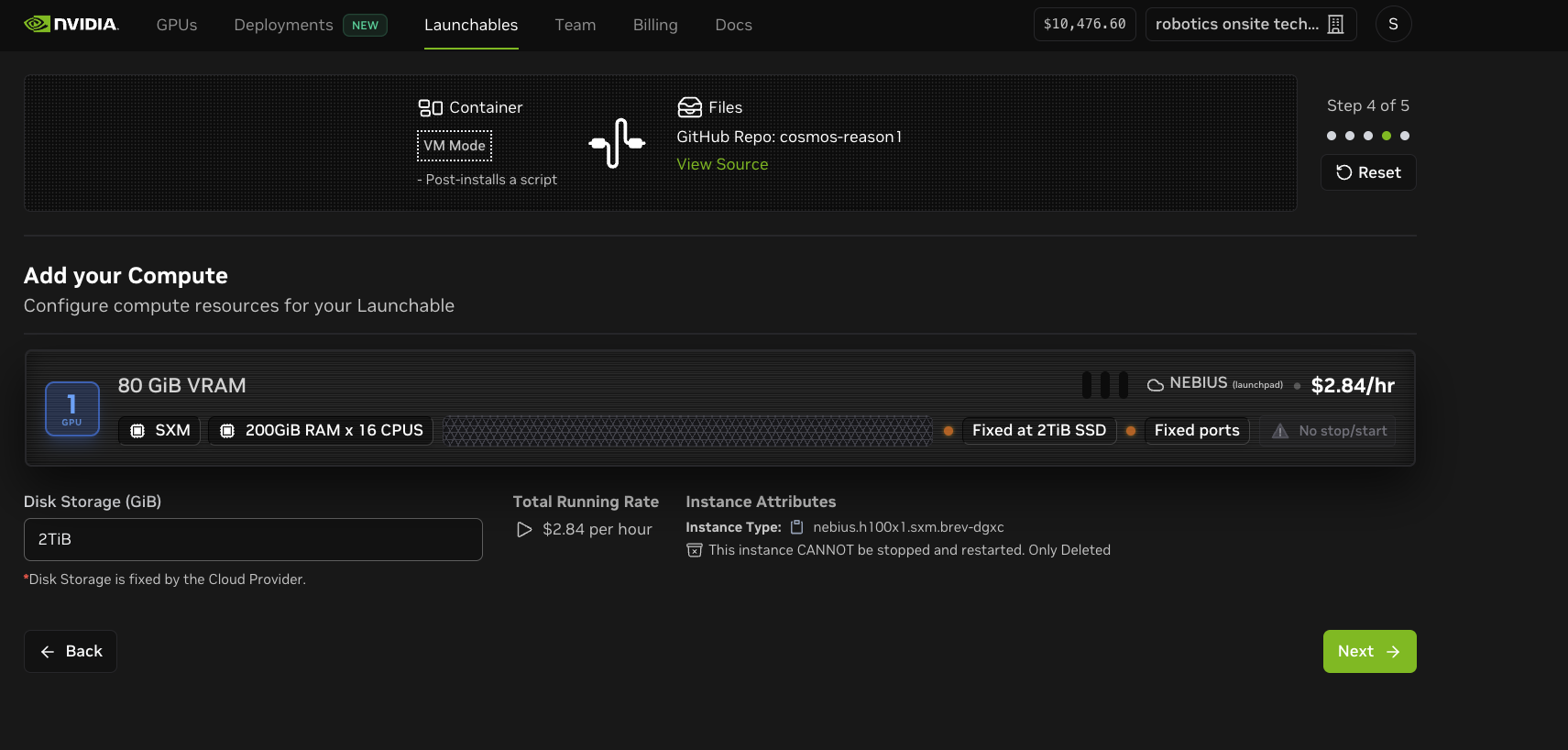
Choose an H100 GPU instance with 80GB VRAM.
-
Name your Launchable and configure access (this usually takes 2-3 minutes).
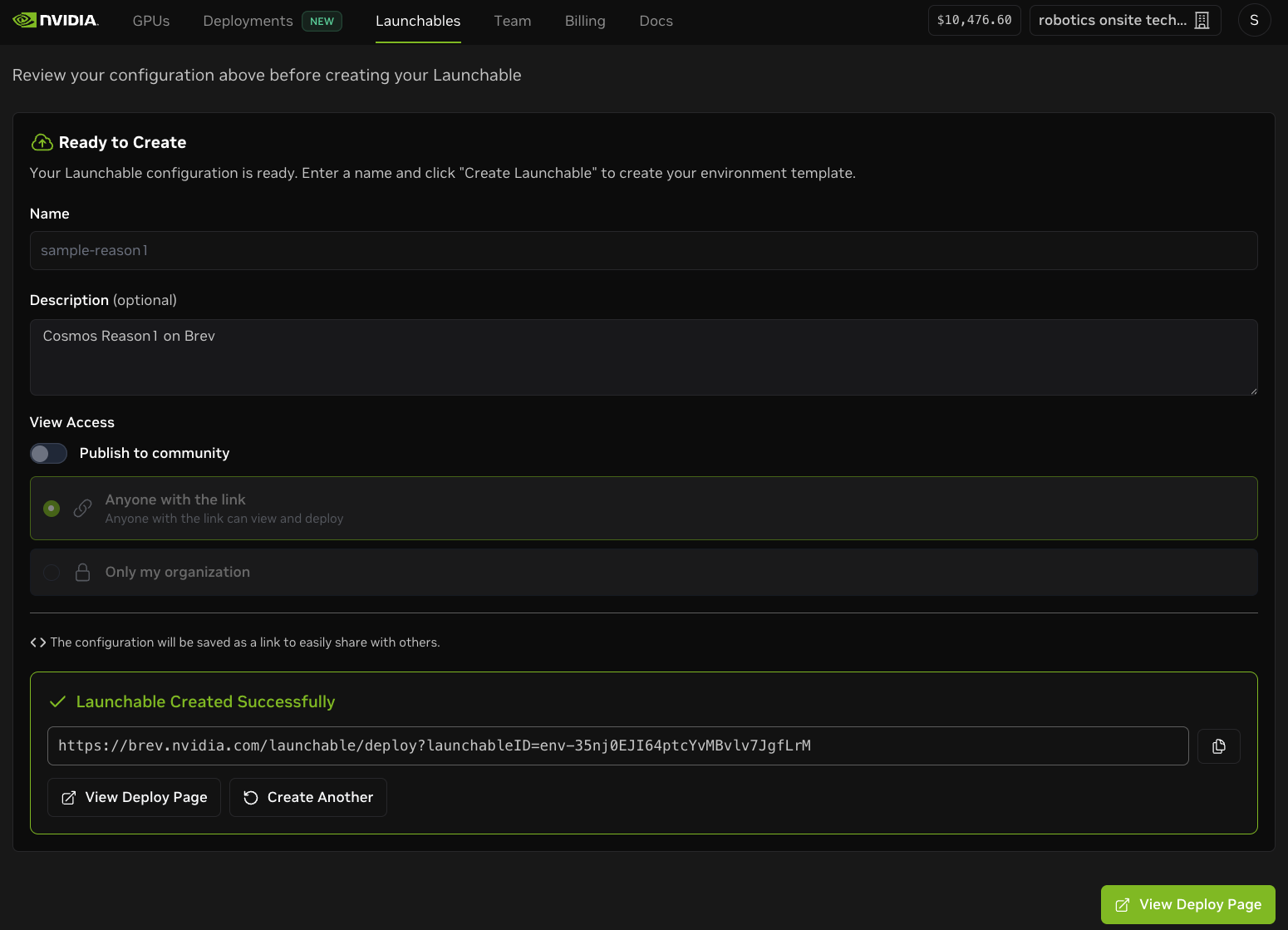
Step 2: Deploy and Connect to Your Instance
-
From the list of Launchables, click the Deploy Now button.

-
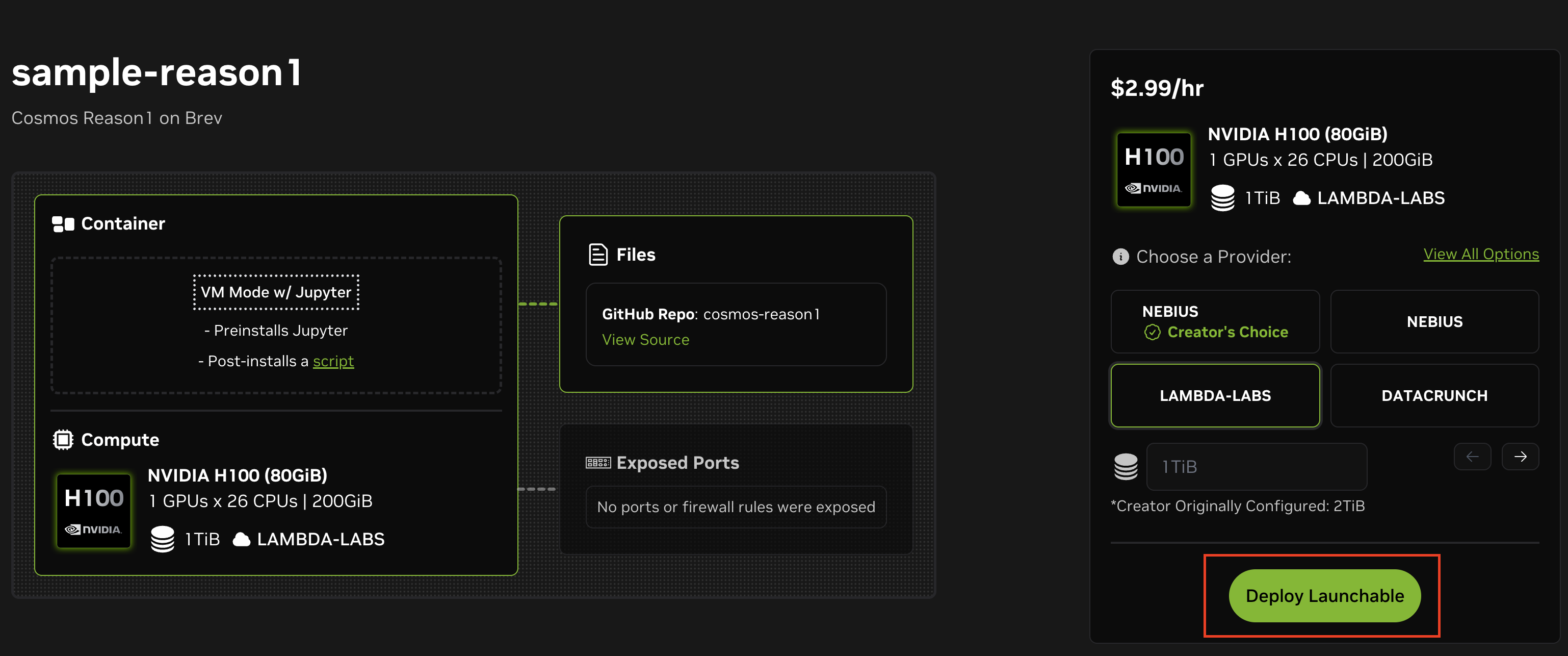
Now click the Deploy Launchable button from the details page.
-
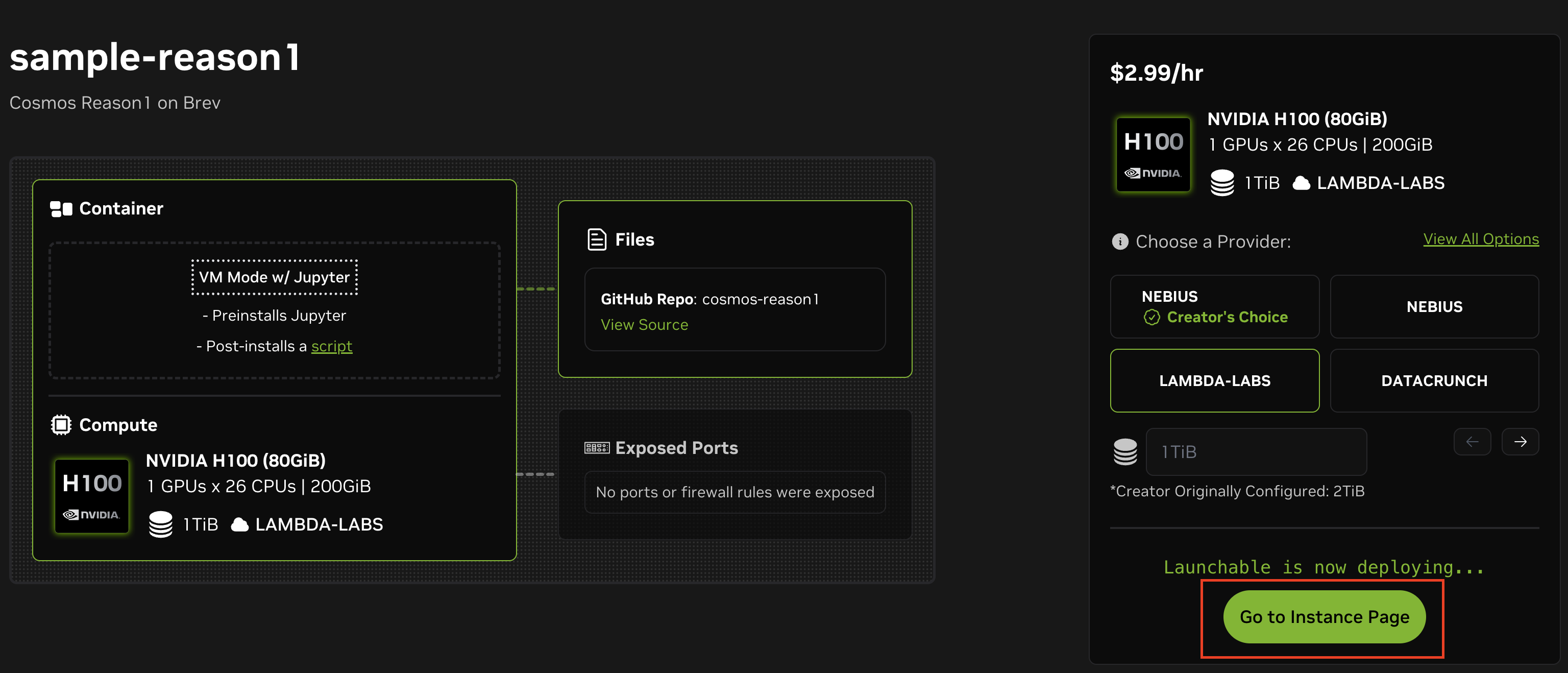
Click the Go to Instance Page button.
-
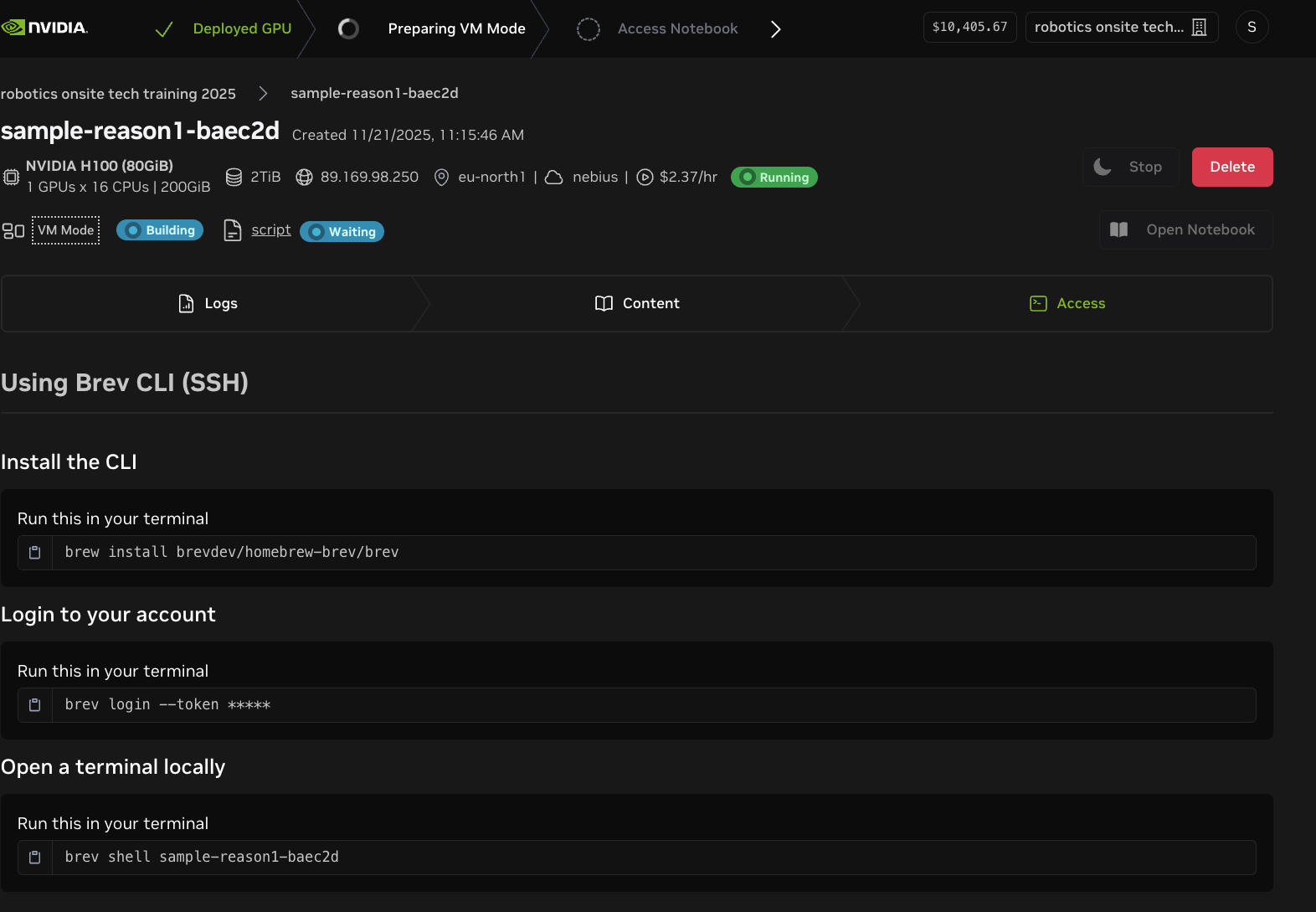
Once your instance is ready, Brev will provide SSH connection details.
Option 1: Open Jupyter Notebook

Option 2: Copy the SSH command from your Brev dashboard
- Use the following terminal command to log in to your Brev account:
- Open a Brev terminal locally:
You can also open the instance in a code editor (the following example uses Cursor):
Step 3: Authenticate the Hugging Face CLI
A Hugging Face token is required to download the Cosmos Reason1 model:
When prompted, enter your Hugging Face token. You can create a token at https://huggingface.co/settings/tokens.
Important: Make sure you have access to the Cosmos-Reason1-7B model. Request access if needed.
Step 4: Run Inference and Post-Training
Now you're ready to run inference with Cosmos Reason 1!
Follow the steps provided in the Cosmos Reason GitHub repo to run the inference and post-training examples.
Troubleshooting
Model Download Issues
If the model fails to download, do the following:
- Verify your Hugging Face authentication:
~/.local/bin/hf whoami - Ensure you have access to the Cosmos-Reason1-7B model
- Check your Internet connection.
- Try downloading manually:
huggingface-cli download nvidia/Cosmos-Reason1-7B
SSH Connection Issues
If you lose your SSH connection, do the following:
- Check if your Brev instance is running. Brev instances may pause after inactivity.
- Check your Brev dashboard for instance status.
- Restart the instance if needed.
- Reconnect using the SSH command.
Resource Management
Stopping Your Instance
To avoid unnecessary charges, follow these steps:
- Go to your Brev dashboard.
- Select your instance.
- Click Stop or Delete when done.
Saving Your Work
Before stopping your instance, use the following command to save your work:
# Save model checkpoints to cloud storage (e.g., S3, GCS)
# Or download them to your local machine
scp -r ubuntu@<your-instance-ip>:~/cosmos-reason1/examples/post_training_hf/outputs ./local-outputs
Additional Resources
- Cosmos Reason 1 GitHub Repository
- Cosmos Reason 1 Model on Hugging Face
- Cosmos Reason 1 Paper
- Brev Documentation
- Cosmos Cookbook
Support
For issues related to Cosmos Reason 1 or Brev, you can use the following resources:
- Cosmos Reason 1: Open an issue on the GitHub repository